Configuring Auto Entry for Custom Fields
Auto Entry fully supports Raiser’s Edge NXT Custom Fields. However, for Auto Entry to work, every custom field created in Raiser’s Edge NXT must have a matching field configured within the related PaperSave Workflow.
Follow the below steps to ensure your custom fields are synced and configured correctly:
Synchronize Data:
Before creating fields in PaperSave, you must perform a Data Sync where “TableEntries” must be synced from RENXT to PaperSave.
1) Check whether a TableEntries data sync already exists.
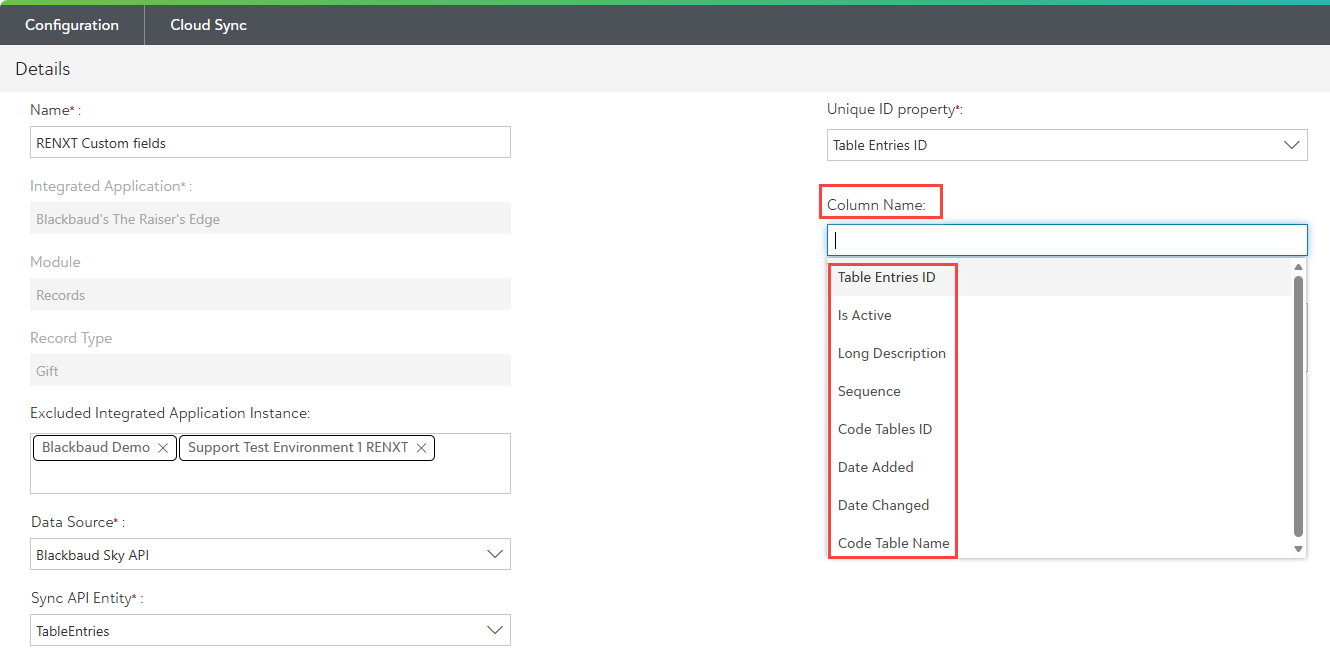
2) If it does not exist, create a new data sync with the following settings:
- Create the data sync Module Type: Record
- Record Type: Gift
- Data Source: Blackbaud Sky API
- Sync API Entity: TableEntries
- Unique ID Property: Table Entries ID
- Column Name: Select all available options from the dropdown list, maintaining the same order as displayed below.
3) Save the configuration and run the sync as shown below.
4) Now the sync creates and populates the TableEntries_{CompanyID} table in the PaperSave database.
Note: Click here to learn how to create the Data Sync.
Configuring the Custom Fields
Create a corresponding Workflow field in the PaperSave Workflow for every custom field in Raiser’s Edge NXT.
Note: Click here to learn more about Workflow Fields.
Follow Naming & Type Rules
You must follow specific naming conventions and data types based on the Raiser’s Edge NXT field type, please refer to the table below:
RENXT Field Type PaperSave Field Type PaperSave field Display Type Auto Entry Field Name Standard Field String Text Box CustomField_[Name of the Workflow field] Fuzzy Date Date Date Box CustomField_FuzzyDate_[Name of the Workflow field] Yes/No String Options Buttons CustomField__[Name of the Workflow field] (Set options to True/False) Table Type* String Drop Down List CustomField__[Name of the Workflow field] Tick the check box of “Connect to Data"
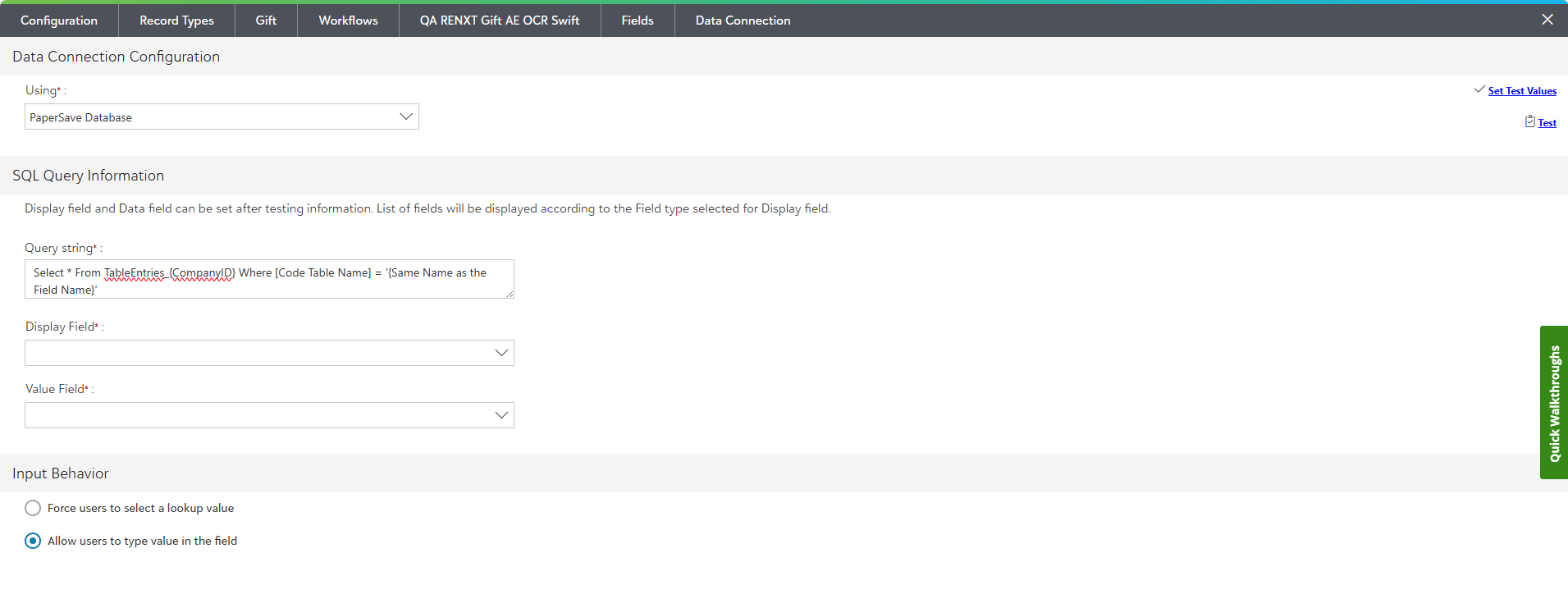
For Table-type* fields, using “PaperSave DataBase”:
- Query String: Use the generalised query below:
Select * From TableEntries_{CompanyID} Where [Code Table Name] = '{Same Name as the Field Name}' - Display Field: Select Long Description.
- Value Field: Select Table Entries ID.
- Input Behaviour: You may choose to “Allow users to type value in the field" based on your preference.